
Software · v1.0.0
Classic Files
Rename a whole folder of files in one step, with a live preview and undo.
Version 1.0.0
Classic Files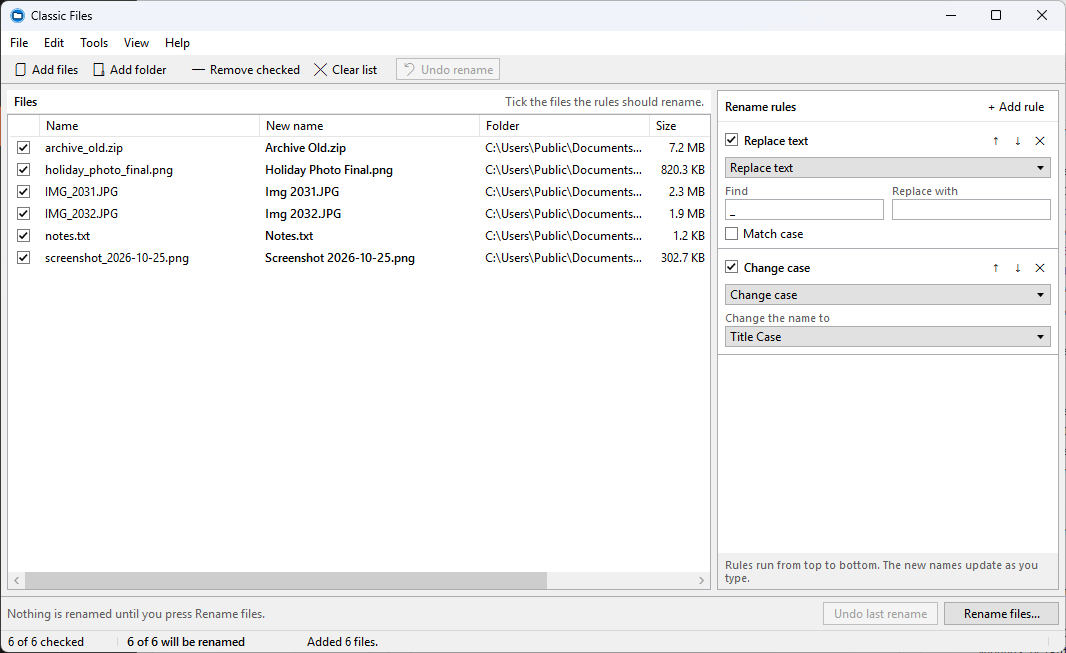
Overview
Rename 300 holiday photos, clean up a download folder, or put numbers in front of every episode — without installing anything or writing a script.
Classic Files looks like a Windows 7 / Windows 10 utility: a real menu bar, a list you can drag files into, and a status bar. Add files or a whole folder, stack a few rules on the right, and watch the New name column update as you type. Nothing touches the disk until you press Rename files.
What you can do
- Replace or remove text, with an optional match case
- Insert text at the start, at the end, or at a chosen position
- Change case: UPPERCASE, lowercase, Title Case, Sentence case
- Number files before or after the name, with your own start number, step, digit count and optional text
- Change the extension
- Keep the original extension out of the rules ("photo.JPG" keeps ".JPG")
- Switch any rule off, reorder the rules, or delete them
- Tick which files to rename; the rest are left alone
Safe by design
- Every new name is checked before anything happens. Bad characters, reserved Windows names, names that are too long, two files wanting the same name, and names already used in the folder are marked in red and skipped
- Existing files are never overwritten
- Undo puts the last batch back with one press (Ctrl+Z)
- Swapping two names (A→B and B→A) works without a temporary mess
- After a successful rename the rules switch off by themselves, so pressing Rename again cannot add the numbers twice
Small things that matter
- Drag and drop files or folders onto the window
- Works with any file type, not just photos
- Classic Light and Classic Dark themes
- Your rules and settings are remembered between sessions
- Checks for updates by itself (you can say no)
- Runs without administrator rights, sends no data, no ads, no account
- Free
Classic Files is a Classic Works™ app.
Media
Downloads
Get it
Only download Classic Files from this page. To check a file wasn't changed, compare its SHA-256 with the one above: on Windows run certutil -hashfile FILE SHA256, on Mac or Linux run shasum -a 256 FILE.
Source code
Open source
Source code (.zip)
66 KBSHA-256
Shared under the MIT license. Check it before reusing the code.
About the code
What you need
- Windows 10 or 11
- .NET 10 SDK
- Visual Studio 2022+ or VS Code (optional)
Build and run
- Unzip and open a terminal in the ClassicFiles folder.
dotnet build ClassicFiles.slnxdotnet run --project src/ClassicFiles
Make the one-file .exe, icon and banners
dotnet build ClassicFiles.slnxpowershell -ExecutionPolicy Bypass -File tools/screenshot-classic-files.ps1 -WindowOnlypowershell -ExecutionPolicy Bypass -File tools/make-release-classic-files.ps1(the finished file lands inpublish/ClassicFiles/ClassicFiles.exe; the zip inrelease/is what gets uploaded)
Run the tests
dotnet test tests/ClassicFiles.Tests/ClassicFiles.Tests.csproj
(50 tests, no real mouse or keyboard input involved)
Folders
src/ClassicFiles.Core: rename rules, name checks, settings, loggingsrc/ClassicFiles: the WPF app, themes and dialogstests: automated teststools: icon, screenshots and release scripts
Specs
Requirements
- Windows 10 or Windows 11 (64-bit)
- Nothing else: the download is a single .exe, no .NET install needed
How to install
- Download the zip and unzip ClassicFiles.exe into any folder (a USB stick works).
- Run it. There is no installer and no administrator prompt.
- If Windows says "Windows protected your PC", click More info → Run anyway (the app is not signed).
- It checks for updates by itself; you can say no.
Where your settings live
%LOCALAPPDATA%\ClassicFiles — your rules, a backup copy and the log. Nothing else is written.
Limits
- It renames files, not folders.
- "Add a folder" adds the files directly inside it, not subfolders.
- Undo covers the last batch only, and only while the app is still open.