
Software · v1.0.0
Classic Clicker
A classic Windows auto-clicker with global hotkeys and an emergency stop.
Version 1.0.0
Classic Clicker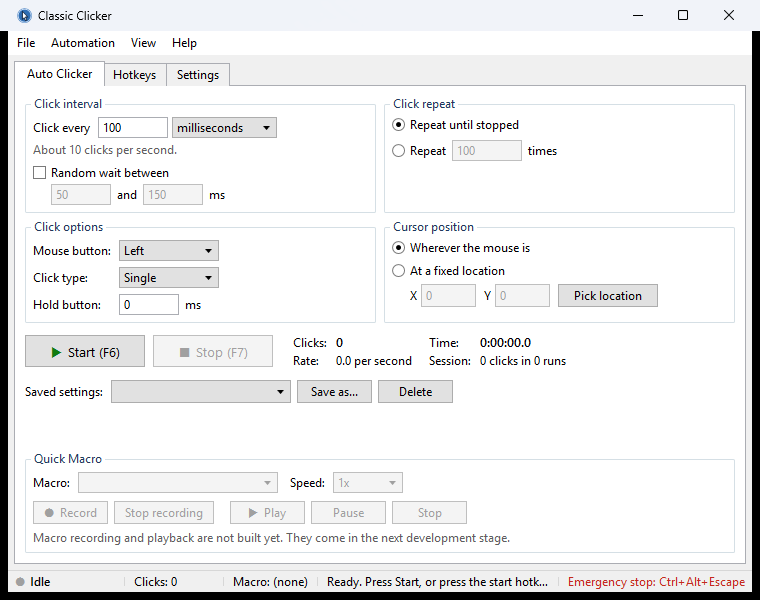
Overview
Classic Clicker is a free auto-clicker that looks and feels like a real Windows 7 / Windows 10 utility: gray dialogs, proper menus, a status bar, and nothing in your way.
Pick how often to click, put your mouse over the target and press F6. Press F6 again to stop.
Features
- Left, right or middle mouse button
- Single or double click
- Interval in milliseconds, seconds, minutes or hours
- Optional random interval (between a minimum and a maximum)
- Click until stopped, or a set number of times
- Click where the mouse is, or at a fixed spot (Pick location)
- Global hotkeys that work in any program, all changeable
- Esc stops clicking, Ctrl+Alt+Esc is the emergency stop
- Live click counter, rate and session stats
- Save your click settings under a name
- Classic Light and Classic Dark themes
- No admin rights, no ads, no data sent anywhere
Coming later
Macro recording and playback, and a macro editor.
Media
Downloads
Get it
Only download Classic Clicker from this page. To check a file wasn't changed, compare its SHA-256 with the one above: on Windows run certutil -hashfile FILE SHA256, on Mac or Linux run shasum -a 256 FILE.
Updates
v1.0.0Oct 25, 2026
- First release. Auto-clicker, built-in auto-updates, global hotkeys, emergency stop, visual key picker, light and dark themes. -false positive on virus total
Specs
Requirements
- Windows 10 or Windows 11
How to install
- Download ClassicClicker.exe and put it in its own folder.
- Run it. It checks for updates by itself and can install them.
- If Windows says "Windows protected your PC", click More info → Run anyway (the app is not signed).
Controls
- F6: start / stop clicking
- F7: stop
- Esc: stop clicking
- Ctrl+Alt+Esc: emergency stop (stops everything)
- Ctrl+Alt+P: capture the mouse position
Note
Windows does not let normal apps click into programs running as administrator. Run Classic Clicker as administrator for those.